 .AI
.AIAutomations
How an APIANT automation is structured and how it runs, from trigger to ordered steps, run records, task counting, the on/off state and saved versions.
An automation is a trigger plus an ordered list of steps, stored as one JSON document. When the trigger fires, the steps run top to bottom, and each step can read the trigger's data and the output of any step that ran before it.
You build and change automations by describing them to Claude or to the assistant in the app. The diagram in the app is read-only; to change a step from the diagram, leave a comment on it for Claude to apply. See Review a diagram and send comments to Claude.
The parts of an automation
| Part | What it is | More |
|---|---|---|
| Trigger | The event that starts a run: a webhook, a poll, a schedule, a form, and so on. An automation can have more than one. | Triggers |
| Steps | The ordered work. Most steps are actions in an app; others branch, loop, wait or call other automations. | Actions and built-in apps |
| Step ID | A short name for each step, such as create_invoice. Later steps use it to read that step's output. | Field mapping |
| Settings | The values a step sends, either fixed text or expressions that read earlier data | Field mapping |
| Error handling | What happens when a step fails: stop, continue, or hand the error to a subroutine | Error handling and retries |
A subroutine is an automation with no trigger that other automations call. See Subroutines and calling automations.
How a run proceeds
- The trigger fires and produces its data, available to steps as
trigger. - Steps run in order. Each step's settings are evaluated against the data so far, the step runs, and its output is stored under its step ID.
- A later step reads earlier output as
steps.<step_id>.output, for example{{ steps.create_invoice.output.id }}. - Conditions, loops and parallel branches run the steps nested inside them. See Conditions, loops and parallel branches.
- The run ends when the last step finishes, a step fails and stops the run, or a step parks the run to wait.
A polling trigger can return several records in one fire. The steps then run once per record, and each record succeeds or fails on its own.
Every step output includes an error field. It is empty when the step succeeded and holds the error details when the step failed but the run continued.
Run records
Each run is recorded in Execution History with its status, its trigger data and every step's input and output. For app actions the record also keeps the request that was sent and the app's response.
| Run status | Meaning |
|---|---|
| running | Steps are executing |
| success | The run finished without an unrecovered error |
| error | The run ended with an error |
| snoozed | The run is parked, waiting for a time, a form, an approval, child automations or a retry |
| halted | The run was stopped before finishing |
| missed | A scheduled occurrence did not run; see Missed occurrences |
See Execution history for filtering, retention and the step detail view.
The gear menu's Processing > Data storage toggle controls whether run data is kept. With data storage disabled, the automation's history shows no processed data, and failed runs cannot be relied on for a later retry.
On and off
An automation built by Claude or the assistant starts off. That lets you test it before a schedule or webhook can make it write to your apps. Turn it on from the switch on its dashboard row, or ask "turn this automation on".
- Only automations that are on are scheduled or polled.
- A webhook delivered while an automation is off is kept and runs when you turn it on. See Webhook triggers.
- Test runs work while the automation is off.
Turning an automation on is refused, with the reason, when a step has a required setting with no value or a step's connection no longer resolves. When you ask Claude or the assistant to turn it on, the request is also refused if your plan's limit on active automations is reached or the automation uses two-way sync and your plan does not allow it.
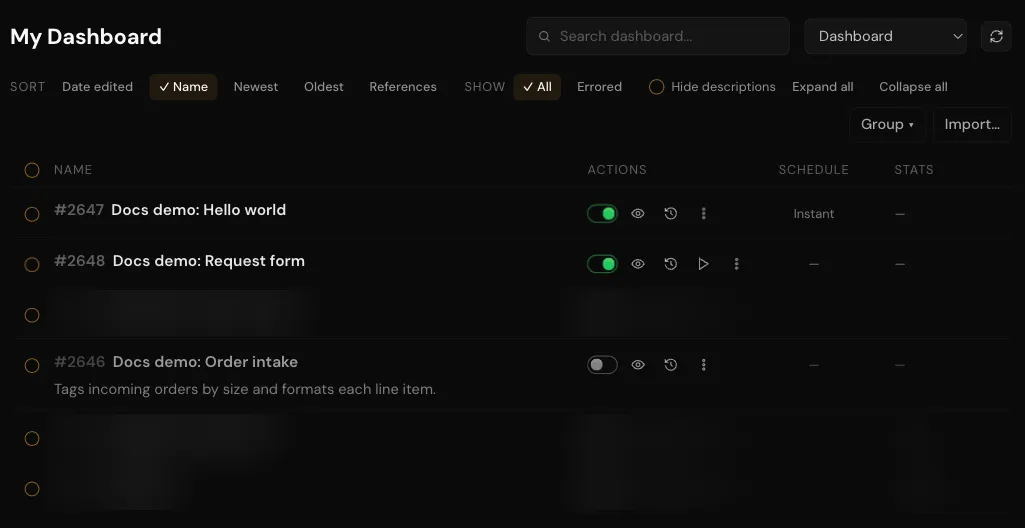
The dashboard lists each automation with its on/off switch, diagram and history links, a Run now button, the gear menu, its schedule, and its task count.
Tasks
Tasks are the unit your plan's monthly allowance counts.
- Each step that runs an action from the app catalog counts one task when it succeeds. That includes built-in apps such as Lookup Tables and Transform Text. Halt data row processing counts none.
- Engine steps that are not catalog actions count none: conditions, loops, parallel branches, calls to other automations, scripts and data transforms.
- A step that fails, or fails and is recovered by error handling, counts none.
- A step inside a loop counts once per iteration it succeeds in.
- A test run counts tasks the same way as a live run.
A plan with a custom billing unit counts differently.
The dashboard row's task count links to that automation's successful runs in Execution History. See Plans, usage and billing for allowances and what happens when one is reached.
Changes and versions
Claude edits an automation in a draft and saves it with a short description of the change. Runs always use the saved version, so an automation that is on keeps running unchanged while a draft is open. Saves are recorded in the automation's version history, which you can view or revert from the gear menu. See Drafts and versions.
Next steps
In this section
Triggers
The trigger types an APIANT automation can start from: polling, schedule, webhook, web service, form, chat, tool input and manual, and when to use each.
Actions and built-in apps
The action steps an APIANT automation can run (add, get, list, find, update, delete, invoke) and the built-in apps that need no connection.
Field mapping
Reference trigger and step output with {{ }} expressions in APIANT, convert value types, clear fields, and import mappings from CSV.
Conditions, loops and parallel branches
How APIANT automations branch with conditions, repeat steps with for-each loops, run branches in parallel, group steps, and stop processing a record.
Subroutines and calling automations
Call subroutines and other automations from APIANT, synchronously or asynchronously, pass inputs, read results and nest calls.
Fan-out and fan-in
Launch child automations in parallel with an APIANT latch group and wait for all of them to finish, with latch scopes, timeouts and restrictions.
Delays, snooze and waits
Pause an APIANT automation for a number of seconds or snooze it until a date and time, how parked runs resume, and how to wake or cancel them.
Storing data between runs
How APIANT automations keep data between runs with Lookup Tables (scopes, expiry, encryption) and Collector buckets, and when to use Variables instead.
Two-way sync
How an APIANT two-way sync keeps records in two apps matched both ways, what each app must provide, how loop prevention works, and how to reset it.
Testing an automation
Test an APIANT automation before turning it on: sample data, webhook replays, restarting from a step, forcing untested branches, reading results.
Drafts and versions
How APIANT keeps edits to an automation in a draft until they are saved, records a version on every save, and lets you view, compare and revert versions.
Error handling and retries
What happens when an APIANT step fails: the automatic retry schedule, continue-on-error modes, error-handler subroutines and the 401 turn-off.