 .AI
.AIDrafts and versions
How APIANT keeps edits to an automation in a draft until they are saved, records a version on every save, and lets you view, compare and revert versions.
Changes Claude or the assistant makes to an existing automation go into a draft first. The automation keeps running as last saved until the draft is saved, and saves are recorded in the automation's version history so you can view or revert to an earlier state.
New automations start off
A newly built automation is saved immediately and, unless you ask for it to be turned on at build time, is turned off. A polling or scheduled trigger would otherwise start firing, and writing to your apps, before anyone had tested it. The usual order is build, test, then turn on. See Testing an automation.
Building an automation again does not replace the first one: it creates a second automation. Changes to an existing automation are edits.
How an edit works
- Load. Claude opens a draft of the saved automation for the current conversation.
- Edit. Each change, such as adding a step, fixing a mapping or replacing a trigger, is applied to the draft only.
- Review. Claude reads the draft back to confirm it matches what you asked for.
- Save. The draft replaces the saved automation, with a short description of what changed.
While a draft is open:
- The saved automation is unchanged. If it is on, its runs keep using the saved version.
- Test runs also use the saved version, so Claude saves before testing a change.
- Saving does not change whether the automation is on or off.
To abandon changes, ask Claude to discard the draft. The saved automation stays exactly as it was.
Saving as a copy
Ask for the change to be saved as a copy to keep the original untouched. The copy is a new automation holding the draft's changes, with " (copy)" added to its name unless the name already contains it. The copy keeps the original's on/off state. The original does not receive the changes.
One conversation per draft
A draft belongs to the conversation that opened it. If another conversation, in Claude Code or the assistant, tries to edit the same automation, it is refused until the owning conversation saves or discards its draft. A draft expires 30 days after its last change.
When Claude reports that another conversation holds a draft, go back to that conversation and save or discard it. The lock cannot be taken over from a different conversation.
Version descriptions
Each save records a description of the change, such as v2: Add error notification to Slack. APIANT adds your name and where the change came from in front of it:
| Saved from | Recorded as |
|---|---|
| Claude Code | Dana Reyes (via Claude): v2: Add error notification to Slack |
| The assistant | Dana Reyes (via chat): v2: Add error notification to Slack |
The combined text is cut to 250 characters, ending in ... when shortened.
Viewing and reverting versions
On the dashboard, open the automation's gear menu and choose Manage > Versions…. The dialog lists saved versions, newest first, each with its date and description.
-
A save with a description, which is how Claude and the assistant save, records the automation as it was after that save, under that description.
-
A save without a description, such as a revert, first records the automation as it was before the save, labelled "snapshot before save at" and the time.
-
View opens that version's diagram in a new tab, marked "Viewing saved version from … (read-only)".
-
Revert… restores that version after you confirm. Your current version is saved first, so a revert can itself be reverted.
A revert keeps the automation's on/off state. If the version you restore can no longer use the current schedule, for example because it has only a webhook trigger, the schedule is removed and a notice after the revert says so.
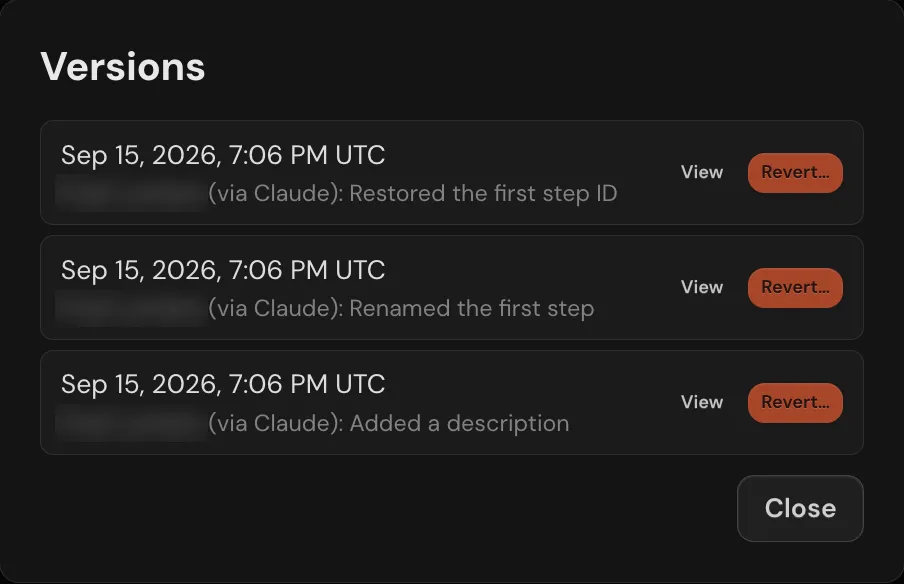
Each version row shows the save date, the description, and View and Revert… buttons.
From Claude Code, you can also ask Claude to list versions, show one version's steps, or compare two versions step by step, for example "what changed between the last two versions?". The assistant does not have version history; use the Versions dialog.
Editing an automation with waiting runs
A run that is parked, for example snoozed or waiting for a form, resumes against the automation as currently saved, not the version it started with. Adding, removing, moving or renaming steps while runs are parked can make those runs repeat steps or stall when they resume. Make structural changes when no runs are waiting, or cancel the waiting runs first. See Delays, snooze and waits.
Troubleshooting
| Symptom | Likely cause | What to do |
|---|---|---|
| Claude says another conversation owns the draft | An earlier conversation opened a draft and never saved or discarded it | Return to that conversation and save or discard, or wait for the 30-day expiry |
| A change does not show up in runs | The draft was never saved | Ask Claude to save the draft |
| Two automations with the same name | The automation was built a second time instead of edited | Delete the unwanted copy from the gear menu |
| The schedule disappeared after a revert | The restored version cannot use a schedule | Add a scheduled or polling trigger, then set the schedule again |