 .AI
.AIYour account
Sign up and sign in to APIANT.ai, turn on multi-factor authentication, change your profile and password, set the alert address, close your account.
An APIANT.ai account is created at https://app.apiant.ai/signup with an email address and password, or with a Google or GitHub login. The account owns your automations, connections and run history, and a plan applies to it.
Sign up
The sign-up page offers Continue with Google, Continue with GitHub, or a form.
| Method | What happens |
|---|---|
| Google or GitHub | APIANT.ai reads the verified email address from the provider and creates the account. A provider email that is not verified is refused. |
| Email and password | Fill in first name, last name, email, phone (optional), password, confirm password and time zone, accept the Terms of Service, and select Register. APIANT.ai emails a confirmation link. The account exists once you open that link. |
Passwords must be at least 8 characters. There are no composition rules.
If a confirmation link has expired or was already used, the page says so. Sign up again to get a new link.
Sign in
Go to https://app.apiant.ai/login and use the same method you signed up with. Forgot password? emails a link to set a new password.
Repeated failed password attempts, from one account or one network address, block password sign-in for a period. A blocked attempt shows the same "Invalid email or password." message as a wrong password, so if a correct password is refused, wait and try again, or reset the password.
Turn on multi-factor authentication
Multi-factor authentication adds a six-digit code from an authenticator app to every sign-in to app.apiant.ai, including Google and GitHub sign-ins.
- Open the account menu (your name, top right) and select Manage….
- In the Multi-Factor Authentication row, select the set-up button.
- Scan the QR code with Google Authenticator or another TOTP app.
- Enter the code the app shows and select Verify.
Multi-factor authentication turns on only after a code verifies. To turn it off, open the same row and select the turn-off button.
Manage your profile and password
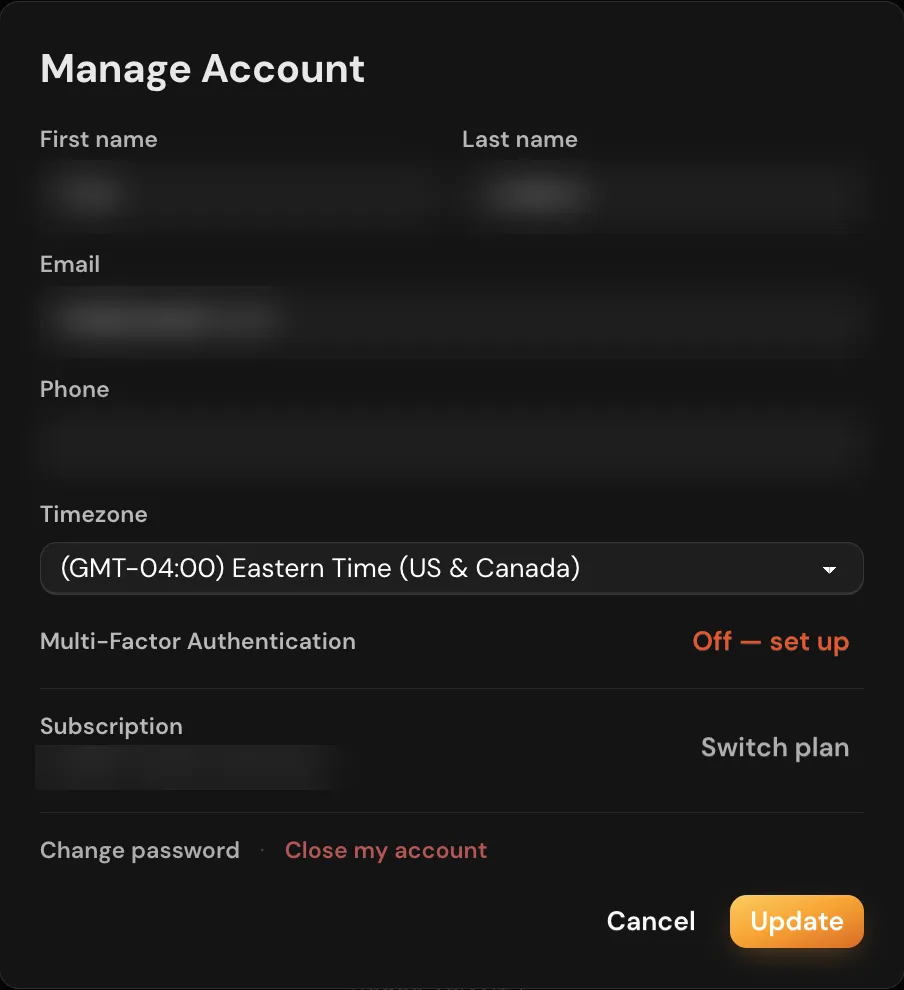
The Manage… dialog holds your profile and account-level actions.
| Field or action | What it does |
|---|---|
| First name, Last name, Email, Phone, Timezone | Select Update to save. Name, a valid email and a timezone are required. An email already used by another account is refused. |
| Subscription | Shows your current plan name, with a link to change plans. See Plans, usage and billing. |
| Change password | Asks for your current password and the new one twice. An account created with Google or GitHub has no password yet; the form is titled Set a password and lets you add one so you can also sign in with your email. |
| Close my account | See Close your account. |
Set where alerts are emailed
The Settings… dialog in the account menu controls error alert emails.
| Setting | Options |
|---|---|
| Alert email delivery | Immediately, Hourly, Daily or Never. |
| Alert email address | Where alerts go. Leave it empty to use your account email. Separate several addresses with commas. |
Alert email delivery is Never until you change it. With Never, APIANT.ai sends no error alert emails and discards queued alerts, including the notice that an automation was turned off because an app connection stopped authorizing. Set it to Immediately, Hourly or Daily after you sign up.
Usage warning emails (tasks, form submissions and similar quotas at 75, 90 and 100 percent) are separate from alert emails. See Plans, usage and billing.
Close your account
- Open the account menu and select Manage….
- Select Close my account.
- Enter your password. An account with no password (Google or GitHub only) skips this step.
- Optionally check Also wipe all my data, which removes automations, stored data and account information and cannot be undone.
- Confirm. APIANT.ai signs you out.
Closing stops every active automation. Closing is not available while you are viewing another account.
Troubleshooting
| Problem | What to do |
|---|---|
| No confirmation email after signing up | Check spam. The sign-up page shows the same Confirm your email page whether or not the address already has an account, so if you signed up before, use Forgot password? instead. |
| "This confirmation link has expired or already been used" | Sign up again. |
| "Invalid email or password." with the right password | Sign-in may be blocked for a period after repeated failed attempts. Wait, then try again or reset the password. If you signed up with Google or GitHub, use that button instead. |
| Lost the authenticator app | Multi-factor authentication cannot be turned off without signing in. |
Next steps
In this section
Plans, usage and billing
APIANT.ai plans, what counts as a task, when allowances reset, what happens at a quota, and how to change or cancel a plan.
Linked and associated accounts
Linked accounts share a parent account's connections; associated accounts give another person access to an owner's account.
Publish and deploy
Publish an automation from dev to prod as a new inactive version, or deploy it into other linked or unlinked accounts.