 .AI
.AIField mapping
Reference trigger and step output with {{ }} expressions in APIANT, convert value types, clear fields, and import mappings from CSV.
A step's settings map each input field of its action to a value: fixed text, or a {{ }} expression that reads the trigger, an earlier step or the current loop item. Claude or the assistant writes the mappings when it builds the automation, using the exact field names the action declares.
What a mapping looks like
Mappings live in the step's settings object. Each key is an input field name; each value is text, an expression, or both:
{
  "step_id": "create_deal",
  "type": "assembly",
  "settings": {
    "Deal Name": "Order {{ trigger.body.order_id }}",
    "Amount": "{{ trigger.body.total }}",
    "Contact ID": "{{ steps.find_contact.output.id }}",
    "Pipeline": "Online sales"
  }
}
Pipelineis fixed text, sent as written.AmountandContact IDread earlier data.Deal Namemixes text and an expression.
A dropdown setting stores the option's value and its label together, for example {"value": "12", "label": "Online sales"}.
Where a value can come from
| Source | Expression | Example |
|---|---|---|
| Trigger data | trigger.<field> | {{ trigger.email }} |
| Webhook body | trigger.body.<path> | {{ trigger.body.customer.email }} |
| Webhook query parameter | trigger.params.<name> | {{ trigger.params.source }} |
| An earlier step's output | steps.<step_id>.output.<field> | {{ steps.create_invoice.output.id }} |
| The current item in a loop | loop.item, loop.index, loop.first, loop.last, loop.length | {{ loop.item.email }} |
| A run variable | variables.<name> | {{ variables.hit_count }} |
| A subroutine's input | trigger.input.<name> | {{ trigger.input.customer_id }} |
| A subroutine's result | steps.<call step_id>.output.outputs.<sub step_id>.<field> | {{ steps.process_contact.output.outputs.lookup_contact.email }} |
A polling trigger's record fields are read directly under trigger. Loop values exist only inside the loop's body.
Field names with spaces
Dotted access works only for names made of letters, digits and underscores. A name with a space or other character uses quoted brackets:
{{ trigger['Appointment Start Time'] }}
{{ steps.lookup_client.output['Email Address'] }}
Field names are case-sensitive. A reference to a field that does not exist renders as empty text rather than failing the step, so a misspelled name shows up as a blank value in the app, not as an error.
Reading a step inside a branch or loop
Step outputs are stored in one map keyed by step ID, so a step after a condition or loop can read a step inside it. A step that did not run, because its branch was not taken, has no output and reads as empty. Two branches of the same condition, and two branches of a parallel step, cannot read each other.
Expressions
The text inside {{ }} is an expr-lang expression, so a mapping can compute a value inline instead of needing a separate step:
| Need | Expression |
|---|---|
| Cents to dollars | {{ int(trigger.amount_cents) / 100 }} |
| Fallback when a value is missing | {{ default(trigger.body.nickname, trigger.body.first_name) }} |
| Epoch seconds to a date | {{ epoch_s_to_date(trigger.created_at, "%Y-%m-%d") }} |
| Epoch milliseconds to a date | {{ epoch_ms_to_date(trigger.dob, "%Y-%m-%d") }} |
| URL-encode a value | {{ url_encode(trigger.body.search) }} |
| Base64-encode a value | {{ base64(trigger.body.token) }} |
| First element of a list | {{ steps.list_rows.output.records[0].id }} |
The date helpers return UTC. For timezone shifts and date arithmetic, use the Transform Date Time app; for anything longer than an expression, a script step.
A condition's test and a loop's list are written as bare expressions without braces, for example trigger.amount > 100. See Conditions, loops and parallel branches.
Types and conversion
A setting that is exactly one expression keeps the expression's type: a number stays a number, a list stays a list. A setting that mixes text and expressions is always text.
Each input field of an action declares a datatype: string, enum, number, integer, bool, array or object. When the step runs, the mapped value is converted to that datatype before it is sent:
| Declared type | Accepts | Fails on |
|---|---|---|
| number, integer | Numbers and numeric text such as "1200" | Text such as "N/A", zero-padded text such as "02134", and for integer, a fraction such as 1.5 |
| bool | true and false in lower, upper or title case, 1, 0, t, f, T, F | Words such as "yes" or "on" |
| array, object | Lists and objects, or JSON text | Text that is not JSON of that shape |
| string, enum | Text, numbers and booleans | Objects |
- A value that cannot be converted fails the run with an error naming the field, instead of sending a value the app would reject.
- A blank value is never converted to
falseor0. It stays blank. - A list mapped to a single-value field is passed through unchanged, because some actions process each element.
Leaving a field alone and clearing it
- An unmapped field is not sent. Most apps then keep the current value, but an app whose update replaces the whole record may not.
- A field mapped to an expression that comes out as empty text is not sent when the field is declared as a number, integer, boolean, array or object. For a text field, whether a blank value is sent depends on how the action was built, so an update action can overwrite a stored value with an empty one.
- To erase a value on purpose, ask Claude to clear that field on the step, for example "clear the phone field on the update contact step". Clearing works only when the action declares how that app clears the field. For other actions, Claude's request to clear is refused rather than sending a blank.
A clear is unconditional: it cannot depend on data in the run.
Viewing an automation's mappings
The field mappings page lists every app action step in an automation, including steps inside conditions and loops. For each step it shows every input field the action declares, with its datatype, whether it is required, its help text and the mapped value. A cleared field shows as "Clears this field", with a note when the action does not support the clear or the app ignores it. Filters narrow the list to required fields, mapped fields or a text search. The page is read-only.
Open it at https://app.apiant.ai/mappings?uuid=<automation UUID>. The gear menu's Manage > Get UUID shows the automation's UUID.
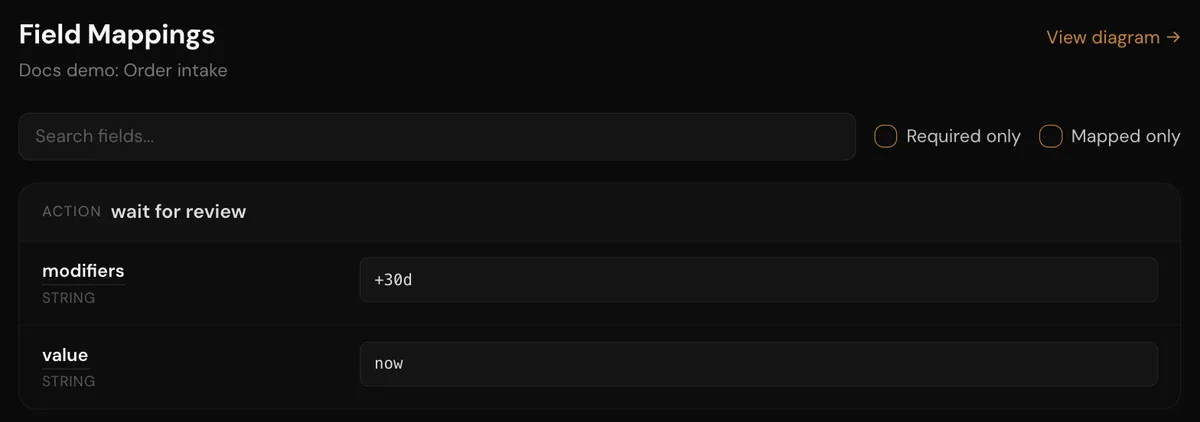
The page shows one table per action step, with a search box and Required only and Mapped only filters above.
Importing mappings from a CSV
If you keep field mappings in a spreadsheet, paste the rows into the conversation, or attach the file in a client that can read it. No APIANT tool reads the file itself.
- Claude looks for source and destination columns, such as "Source Field" and "Destination Field", or "From" and "To".
- Claude reads the target action's real input fields.
- Each spreadsheet name is matched to a field: exact match first, then case-insensitive, then partial, then by meaning, so "Phone" can match
mobile_phone. - Claude asks you about any name that matches more than one field.
- The matched mappings are written into the step's settings.
Troubleshooting
| Symptom | Likely cause | What to do |
|---|---|---|
| A field arrives blank in the app | The referenced field name is misspelled, differs in case, or the step it reads did not run | Ask Claude to compare the mapping with the last run's step output |
| The run fails naming a field as unconvertible | The value does not match the field's declared datatype, for example "yes" into a boolean | Map a value of the right type, or convert it in the expression |
| A name, email or custom field is blank although the ID is right | An ID was mapped into a field that needs detail data | Ask Claude to add a Get action for that record first |
Text such as {trigger.email} arrives literally | Single braces instead of double | Use {{ trigger.email }} |