 .AI
.AIPublish and deploy
Publish an automation from dev to prod as a new inactive version, or deploy it into other linked or unlinked accounts.
Publishing copies an automation from your dev environment into your prod environment as a new, inactive version. Deploying clones an automation from one account into other accounts in the same environment, and every deployed copy starts inactive.
Plan: Enterprise
An Enterprise installation has a dev environment, where you build and test, and a prod environment, where customer accounts run. The usual rollout is to publish a finished automation from dev to prod, then deploy it from prod to each customer account.
Publish and deploy compared
| Publish | Deploy | |
|---|---|---|
| Moves an automation | From the dev environment to its paired prod environment | From one account to other accounts in the same environment |
| Runs from | The dev environment only | The account that holds the automation |
| Lands as | A new version owned by the prod environment's Automation Templates account, inactive | A copy in each target account, inactive |
| Replaces | The prod copy of the same automation, keeping the replaced document in its version history. An automation whose prod copy is newer than the dev copy is skipped | A linked deploy replaces the earlier copy and keeps the replaced document in that copy's version history |
| Connections | The connection's settings travel, its credentials do not | Nothing is copied. Each account uses its own connection for the app |
| Available through | Claude | Claude, or Deploy… in the automation's gear menu |
The assistant in the app cannot publish or deploy.
Publish from dev to prod
Ask Claude from a Claude Code session connected to your dev environment:
Publish the Order sync automation to prod.
To publish a whole folder, say so ("publish the whole Order sync folder to prod"). A folder publish stops at the first automation that is rejected or skipped and reports what landed before it stopped.
A publish carries what the automation needs to run in prod:
| Reference | What publish does |
|---|---|
| Subroutines and error handlers the automation calls, at any depth | Copied with it |
| Connectors, actions and triggers you built privately in dev | Copied with it |
| Apps from the shared APIANT catalog | Not copied. Prod already has them |
| Connections the automation uses | The connection record is copied without its credentials. Connect the app again in prod |
The published copy lands inactive in the prod environment's Automation Templates account, so it does not appear in any user's automation list. Deploy it from there to put it into customer accounts.
Claude reports the result. If the prod copy is newer than the dev copy, the automation itself is not replaced and Claude says it was skipped. Connections, private connectors and subroutines it carries can still be copied.
Deploy to other accounts
Every deploy is either linked or unlinked, and the choice is made per deploy.
| Deploy type | What a later deploy of the same automation does | Typical use |
|---|---|---|
| Linked | Updates the existing copy in each account in place | Ongoing customer rollouts and new versions |
| Unlinked | Creates another fresh copy | One-off seeds, demos and testing |
Both deploy types copy the subroutines the automation calls into each account. Each account keeps one copy of a subroutine, and a later deploy updates that copy instead of adding another. Steps that use an app refer to its connection by app and connection name, so each account runs with its own credentials.
Deploy with Claude
Ask Claude:
Deploy Order sync v4.01 to all my child accounts as a linked deployment.
- Claude resolves the automation and the target accounts. "All" means your active linked child accounts. Named accounts must be your own account or one of your linked children.
- Claude asks whether the deploy is linked or unlinked if you did not say.
- Claude shows a preview with the number of automations and target accounts and whether the deploy is linked, and waits for you to confirm.
- Claude deploys and reports a result for each account.
A failure in one account does not stop the others. To retry, ask Claude to deploy again to the accounts that failed.
Deploy from the app
- On the dashboard, open the automation's gear menu and choose Deploy….
- Search for accounts by name or email and select each target. The list covers every active account in the environment, not only linked children.
- Choose Deploy to N accounts…, then Yes, deploy.
- At Link this automation to the deployed copies?, choose Yes, link or No, don't link.
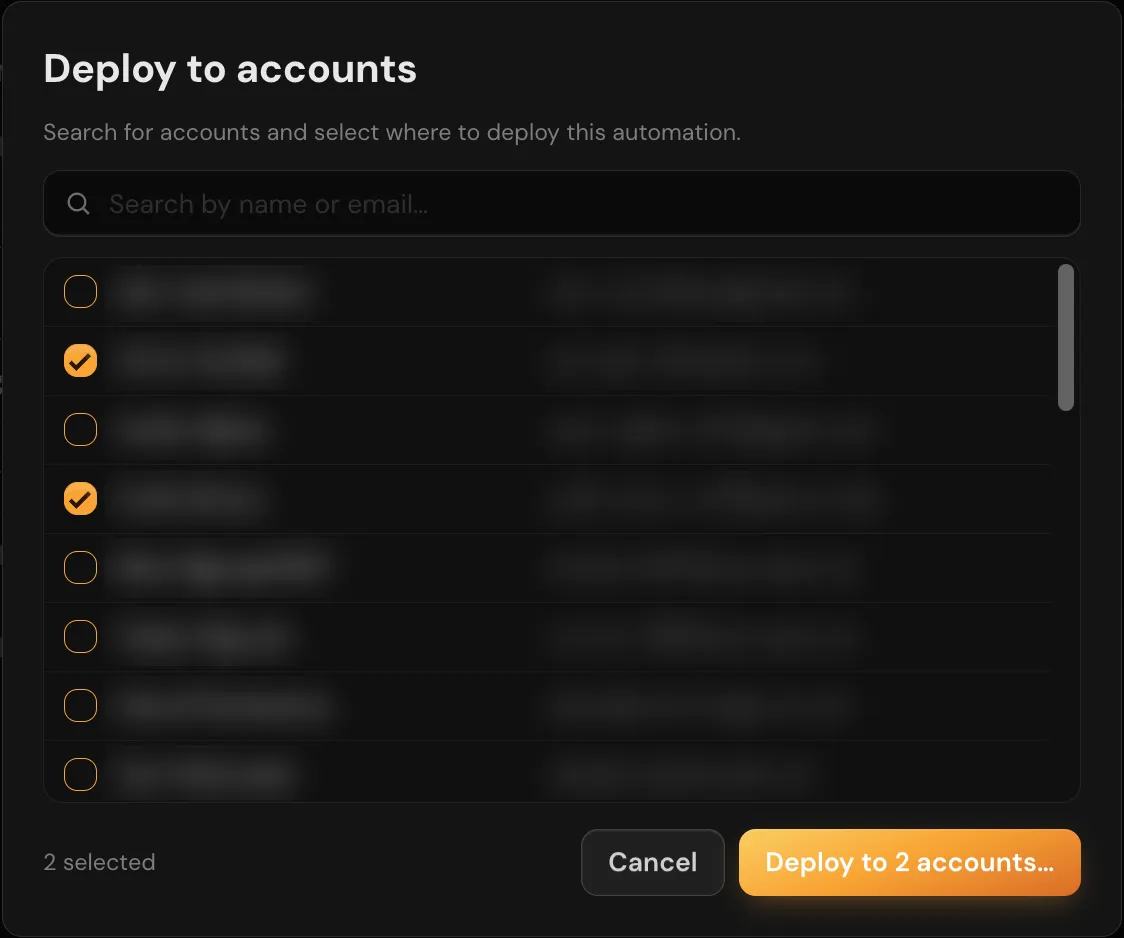
The Deploy to accounts dialog has a search box, a checkbox list of accounts, and a button that counts the accounts you selected.
The dialog ends with a summary that lists each account as deployed, updated or failed, with the error for each failure. When you are viewing a switched-into account that has linked children, a Show child accounts only checkbox narrows the list to those children.
The Deploy… item appears only for users with the Deploy Automations permission.
After a deploy
Deployed copies start inactive. For each target account:
- Connect every app the automation uses, in that account or as a shared connection from its parent. Turning on an automation whose connection does not resolve is refused, with a message that names the steps.
- Configure any trigger URL that changed (see below).
- Turn the automation on.
A linked redeploy also leaves the updated copy off, including a copy that was on before, so turn it on again after each linked redeploy.
A fresh copy gets new trigger URLs. A linked redeploy keeps the existing trigger URLs unless the automation's number of triggers changed. What to do with a new URL depends on the trigger:
| Trigger | What to do |
|---|---|
| Webhook trigger that registers itself with the app | Nothing. It registers when the automation is turned on, and the automation stays off if registration fails |
| Webhook trigger you set up by hand in the other app | Paste the new URL into that app's webhook settings |
| Web service or form trigger | Give the new public URL to whoever calls it |
Claude's deploy report lists every trigger whose URL changed, with the URL. The in-app Deploy dialog does not list them.
Permissions
| Action | Requirement |
|---|---|
| Publish | Running from a dev environment, and owning the automation or holding the Switch Account permission |
| Deploy with Claude | The Switch Account permission |
| Deploy from the app | The Deploy Automations permission |
On app.apiant.ai the default user role holds neither permission. An administrator of your installation grants them.
Troubleshooting
| Message or symptom | Cause | What to do |
|---|---|---|
| Publish is refused as only available from a dev environment | Claude is connected to a prod environment account | Connect your AI client while signed in to your dev environment and ask again. Switching accounts cannot reach dev from prod. |
| Publish reports the automation was skipped | The prod copy is newer than the dev copy | The prod automation was not replaced. Decide which copy is correct, make the change in dev, then publish again. |
| Publish fails on a missing subroutine | The automation calls a subroutine or error handler that no longer exists in dev | Fix or remove the reference in dev, then publish. Retrying does not help. |
| Deploy is refused with a disallowed-app error | The target account's plan does not allow an app the automation uses, possibly only inside a subroutine | Check the subroutines as well as the automation itself. |
| Deploy is refused because the automation needs OAuth scopes the shared connector cannot grant | The automation depends on scopes that only your own OAuth app provides | Rework the steps to use scopes the shared connector grants. |
| "deploy targets are not linked children of the caller" | You asked Claude to deploy to an account outside your linked family | Deploy to linked children, or use Deploy… in the app with the Deploy Automations permission. |
| Turning on a deployed automation is refused | An app it uses is not connected in the target account | Connect the app in that account, then turn the automation on. |