 .AI
.AIError alerts
How APIANT emails you when a run fails, how to set alert frequency and address, and how to rewrite or silence specific alerts.
When a run ends in an error, APIANT queues an alert for the automation's owner and sends it by email on the schedule set in your account settings. New accounts start with that schedule set to Never, and Never discards queued alerts, so you receive no error emails until you change it.
Turn on error emails
-
Open the account menu (your name, top right) and select Settings….
-
Set Alert email delivery:
Value Effect Immediately Sends queued alerts within about a minute Hourly Sends one email per hour with the alerts queued in that hour Daily Sends one email per day Never Sends nothing and deletes queued alerts. This is the default. -
Optionally set Alert email address. If it is empty, your account's email is used. Separate several addresses with commas.
-
Select Apply.
The Settings dialog holds the alert email delivery frequency and the address alerts are sent to.
What an alert contains
The email subject is "Alerts in the past minute", "hour" or "day". Each alert in the email shows:
- how many times that alert occurred in the period,
- the automation name and the step that failed,
- the error message, after any alert mappings are applied,
- a link to the run in Execution History.
Identical alerts from the same automation are combined into one entry with a count.
When an alert is created
| Event | Alert |
|---|---|
| A run ends in an error | An error alert, unless the message is suppressed |
| A step failed with a temporary error and is waiting for an automatic retry | None yet. An alert is created only if the retries run out. See Retries, replays and restarts. |
| A step failed but its error subroutine or a continue-on-error setting handled it | None |
| An app returned HTTP 401 | APIANT turns the automation off and queues a notice that a 401 error turned it off and that you need to reconnect the account, instead of the error alert |
A platform-wide list of APIs that return 401 for errors unrelated to credentials is exempt from the 401 turn-off. Those 401s produce a normal error alert.
Per-automation alert settings
Open the automation's gear menu on the dashboard, then Processing and Alert handling:
| Item | Default | Effect |
|---|---|---|
| Email me on any alert | On | Queues an error email when the automation's run fails. Turn it off to stop emails for this automation only. |
| Turn off automation on any alert | Off | Turns the automation off whenever a run ends in an error |
| Alert mappings… | None | Rewrites or silences alert messages; see below |
| Manage suppressed alerts… | Shown when entries exist | Lists messages you have silenced for this automation |
Alert mappings
An alert mapping rewrites an alert message before it is sent, or silences it. Each rule is a pattern and a replacement.
| Part | Behavior |
|---|---|
| Pattern | A regular expression that must match the whole message. Wrap text in single quotes, such as 'connection refused', to match that text anywhere in the message, case-sensitive. |
| Replacement | Replaces the entire message when the pattern matches. {ORIGINAL} inserts the message the rule matched. |
| Empty replacement | Silences the alert |
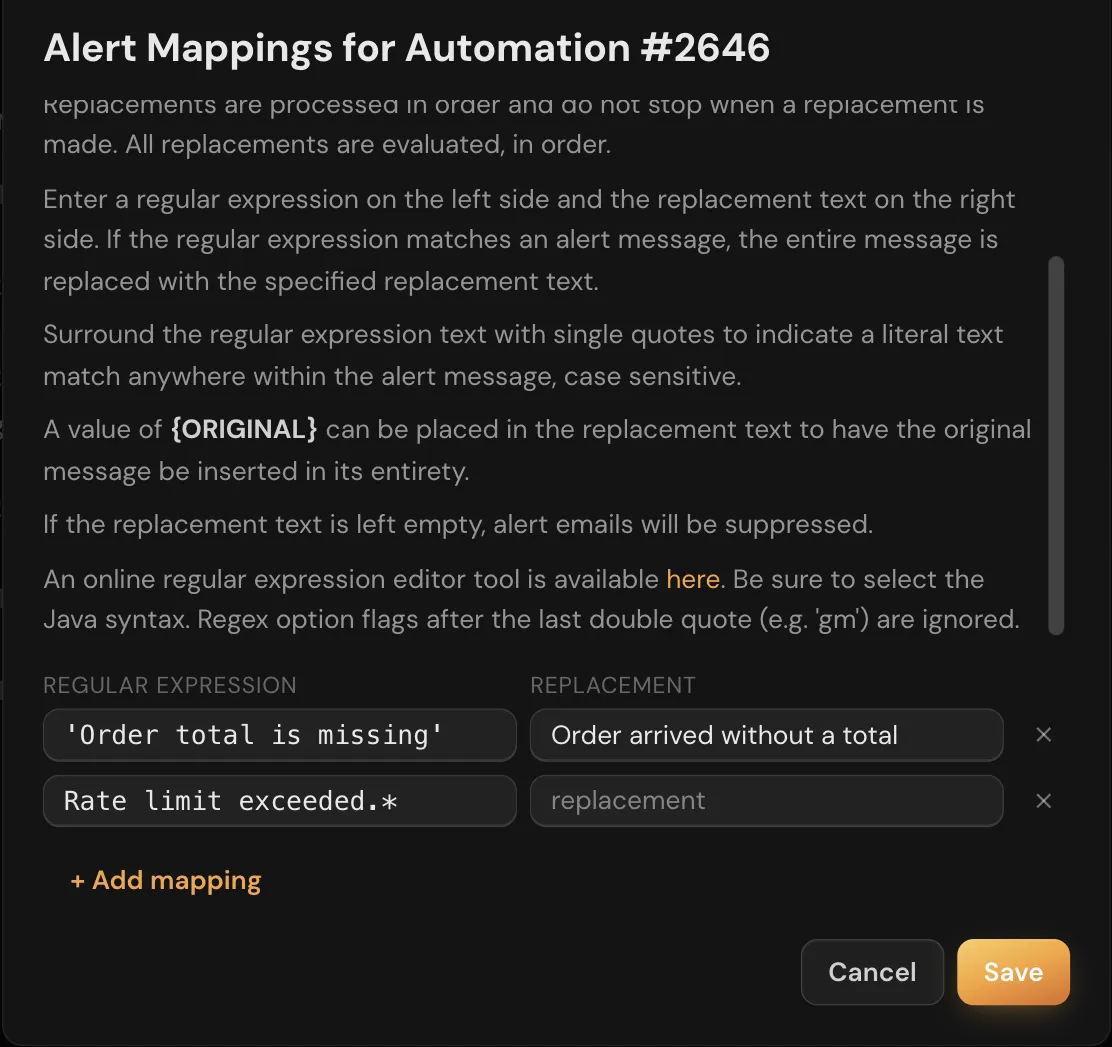
The Alert mappings dialog explains the rule syntax above a list of pattern and replacement pairs, with + Add mapping to add a row.
Rules run in three levels, in this order: rules on the step that failed, then rules on the automation, then account-wide rules. Within a level, every rule runs in order, and each rule sees the output of the previous one. A rule with an empty replacement stops the chain and silences the alert.
The dialog edits automation-level rules. Ask Claude to add step-level rules, for example: "For the Create invoice step in the QuickBooks sync, replace any message containing 'Duplicate Document Number' with 'Invoice already exists in QuickBooks: {ORIGINAL}'." Saving step rules replaces that step's whole rule list, so Claude reads the existing rules first and adds to them.
Silencing one exact message
A suppressed alert is an exact first line that is never emailed again for that automation. It matches only text that is identical character for character, so a message that includes an ID or a timestamp changes every time and is not caught. For recurring errors whose text varies, use an alert mapping with a quoted pattern and an empty replacement instead.
Ask Claude to suppress a message, and remove entries in Manage suppressed alerts….
Why an alert looks wrong or did not arrive
Ask Claude to trace it: "Why did the alert for yesterday's failed run of the Zendesk sync say 'Request failed'?" Claude replays the mapping rules against the recorded error and shows which rule changed or silenced the message. The trace covers mapping rules only. If it shows nothing silenced the message, check, in order:
- Alert email delivery is not Never.
- Email me on any alert is on for the automation.
- The message is not in Manage suppressed alerts….
- The automation was not turned off by a 401, which sends the turn-off notice instead of the error alert.
Changes to rules apply to the next failure, not to runs that already failed.
Act on failures with an automation
The System app's Automation error (my account) trigger starts an automation whenever one of your automations fails. Use it to post failures to Slack, open a ticket, or page someone. The trigger data carries the automation name and ID, the failed step, the error message after mappings, and a link to the run.
Alert mappings with an empty replacement also stop this trigger. Email me on any alert, Alert email delivery and suppressed alerts do not; they control email only.