 .AI
.AIConnecting accounts
Connect an app account to APIANT with OAuth or an API key, manage several accounts per app, reconnect after a 401, and disconnect.
A connection is your authorized account on an app, such as your Slack workspace or your Stripe account. Automation steps that call that app use one of your connections. Connection credentials are encrypted at rest and are available only to automations in your account and, if you share them, to your linked child accounts.
Prerequisites
- An APIANT account at app.apiant.ai.
- An account on the app you are connecting, with permission to authorize third-party apps or create API keys.
- A free connection slot on your plan. Each plan allows a set number of connections; see pricing.
Connect an app
1. Open the Connect App dialog
Open Connections in the top bar. The App Connections page lists the apps and accounts you have connected. Select Connect App.
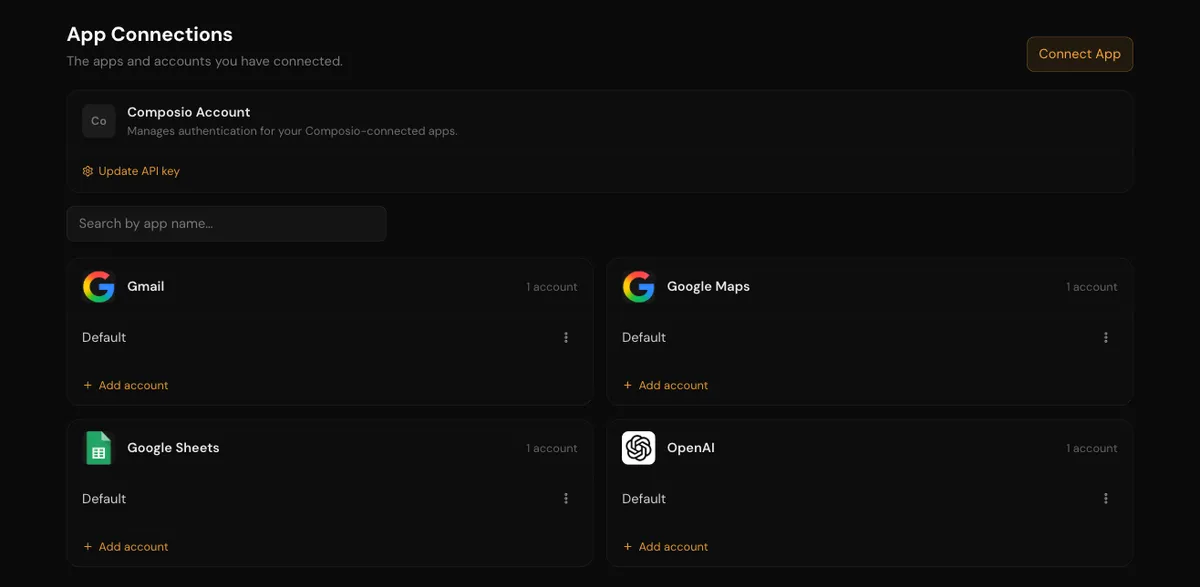
The App Connections page shows one card per app, with each connected account listed under it.
2. Pick the app
Search by app name and select the app. The first account you connect for an app is named Default. Automations deployed to your account from a template look for the Default account, so keep that name on the account you use most.
3. Authorize
What happens next depends on how the app authenticates:
| App type | What you do |
|---|---|
| OAuth | Select Continue to the app. Your browser goes to the vendor's authorization page. Sign in, choose the workspace or portal if asked, and approve. The vendor sends you back to APIANT. |
| Managed authentication (Composio) | The first time, paste an API key from your own Composio account if the dialog asks for one. The vendor's authorization page opens in a new tab; the dialog updates on its own when you finish there. |
| API key or other credentials | Fill in the fields the app asks for, such as an API key, a subdomain or a secret, and save. |
| Needs your keys | Enter the client ID and secret, or other app keys, from an app you registered on the vendor's developer portal. See Use your own OAuth app or API keys. |
4. Confirm
The app appears on the App Connections page with the account name. To check that the credentials work, open the account's menu and select Test connection.
Connect from Claude or the assistant
When an automation you ask for needs an app you have not connected, Claude or the assistant tells you which app and gives you a way to connect it:
- For an OAuth app, Claude gives you a link that opens the vendor's authorization page. The assistant sends you to the same page in your browser tab.
- Claude may give you a link to a page titled These apps are required, listing every app the automation needs, with a Connect button for each.
- For an API key app, you can paste the key into the conversation and Claude or the assistant connects it. The key is then part of that conversation. To keep it out of the conversation, connect the app on the App Connections page instead and tell Claude when it is done.
Add another account for the same app
Open Connect App, pick the same app, and enter a new account name. Names must be unique per app. Tell Claude which account name to use when you ask for an automation that should use a non-default account.
Manage a connection
Open the menu on the account's row.
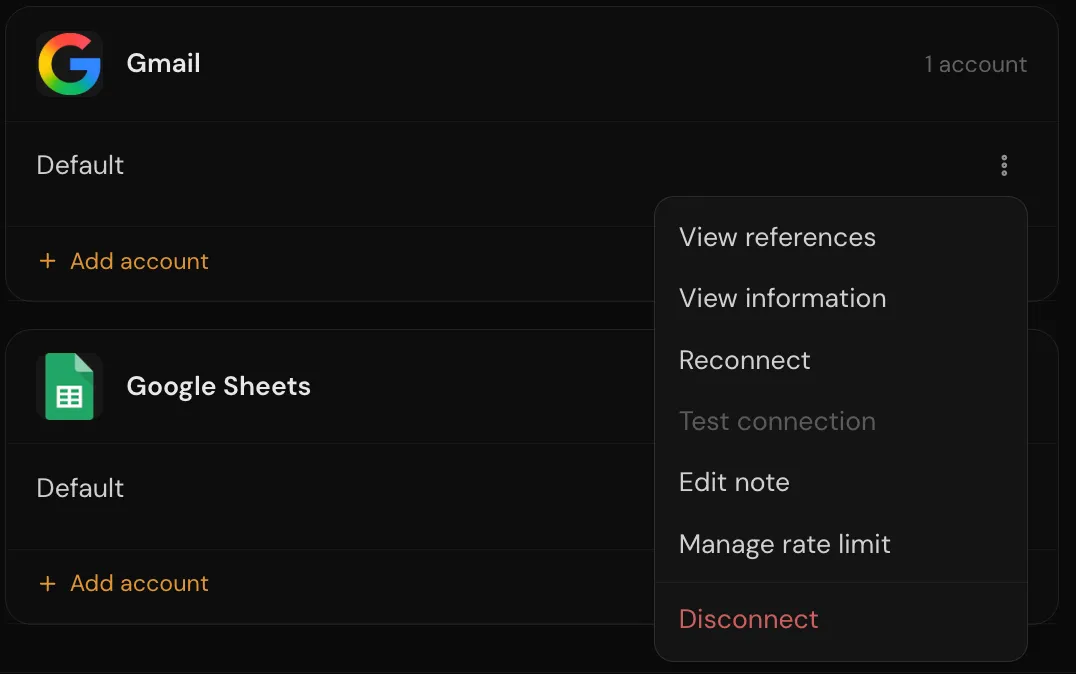
The row menu lists the actions available for that account.
| Menu item | What it does |
|---|---|
| View references | Lists the automations that use this account |
| View information | Shows the stored credentials after you confirm your password |
| Reconnect | Runs the authorization again, or asks for new credentials. Use it after a revoked token or when an app needs a new permission. |
| Test connection | Checks the credentials against the app |
| Edit note | Adds a note to the account, for example which environment it points to |
| Share with children / Stop sharing with children | Shown when your account has linked child accounts. Lets the child accounts use this connection. See Linked and associated accounts. |
| Disconnect | Removes the account. Automations that use it are turned off, unless a shared connection is available instead. If you disconnect Default while you have other accounts for that app, one of them becomes the new Default. |
Two status labels can appear on an account:
- Reconnect needed: the connection needs new consent or new credentials, for example because the app's access was widened, a step was refused for a missing permission, the token could not be refreshed, or Test connection failed. Select Reconnect.
- Awaiting scope review: a permission change is waiting for the vendor's review before the connection resumes.
Connections shared with you by a parent account appear under the Parent Account tab and are read-only.
Apps still needing a connection
The connect-required page lists each app an automation needs and marks the ones already connected.
The connect-required page opens from a link Claude gives you. If the link has expired, the page says so; ask Claude or the assistant for a fresh link.
When a connection stops working
If a run fails because an app returned HTTP 401 (unauthorized), APIANT turns the automation off and queues a notice to reconnect the account. The exception is a platform-wide list of APIs known to return 401 for errors that are not about credentials; those failures follow the normal error alert path. Reconnect first, then turn the automation back on; turning it on against a connection that still fails turns it off again at the next 401.
APIANT emails that notice with your error alerts, and a new account's error email setting is Never. Change it so you receive these notices; see Error alerts.
Troubleshooting
| Problem | Fix |
|---|---|
| The authorization tab for a managed-authentication app never opened | The browser blocked the new tab. Use the Open the authorization page link in the dialog. |
| The vendor says the redirect URI does not match | Applies to apps connected with your own OAuth app. The redirect URI registered on the vendor portal must match the one APIANT shows, character for character. |
| The vendor refuses to authorize | Your vendor user lacks permission to install or authorize apps. Ask an admin on the vendor side. |
| Test connection fails right after connecting | The key, subdomain or other value is wrong, or the key lacks the permissions the app needs. Reconnect with corrected values. |
| A step fails with 403 or "missing scope" | The connection was not granted a permission the operation needs. Select Reconnect and approve the additional permission. |
| An automation was turned off after a 401 | Reconnect the account, then turn the automation back on. |
| You cannot connect another app | The account has reached its plan's connection limit. Disconnect an unused account or change plan. |