 .AI
.AIQuickstart: build with the assistant
Create an APIANT.ai account, describe an automation to the in-app assistant, connect the apps it needs, test it and turn it on.
The assistant builds an automation from a sentence: you describe what should happen, it looks up the apps in the catalog, asks you to connect them, saves the automation and tests it. New automations are saved turned off, so nothing runs until you turn it on.
Prerequisites
- A browser.
- An account on the app you want to automate (for example Shopify or Slack), so you can sign in to it when the assistant asks.
Steps
1. Create an account
- Go to app.apiant.ai/register.
- Select Continue with Google or Continue with GitHub, or fill in the form: first name, last name, email, a password of at least 8 characters (entered twice), and your time zone. Phone is optional.
- Accept the Terms of Service and Privacy Policy, then select Register.
- If you registered with email, open the confirmation link APIANT sends you.
The sign-up page offers Google, GitHub, or an email and password.
2. Describe the automation
-
Select Assistant in the top navigation.
-
Describe what should happen, naming the apps and the event that starts it. For example:
textWhen a new order comes in on Shopify, post the order number and total to the #orders channel in Slack. -
Answer the one or two questions the assistant asks, if any.
While it works, the line next to the spinner says what it is doing, such as looking up an app's triggers. A message you send during a run is queued and picked up at the next step.
The conversation shows your request, the assistant's replies and a progress line while it works.
3. Connect your apps
When the automation needs an app you have not connected, the assistant posts a card that reads "I need access to App before this can run." with a Connect button.
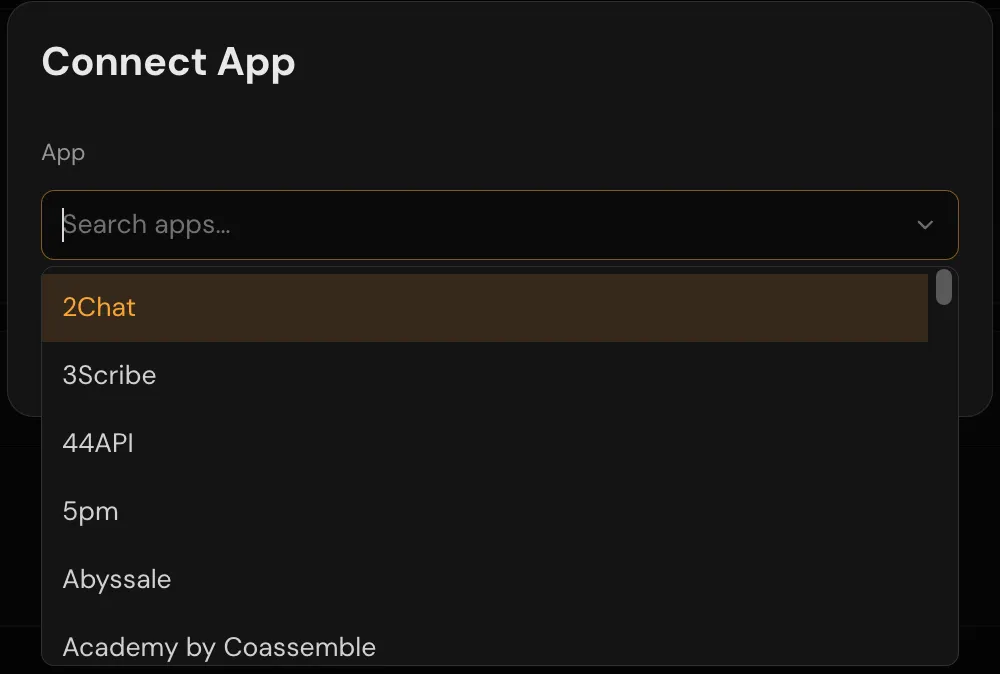
- Select Connect. A page lists the apps to connect.
- Connect each one, through the app's own sign-in or its API key form.
- You return to the conversation, and the assistant carries on from where it stopped.
You can also connect apps ahead of time from Connections.
The Connections page lists the accounts you have connected and lets you add new ones.
4. Review the diagram
When the assistant saves the automation, the page opens its diagram. If you are typing at that moment, the conversation shows an Open the diagram link instead. Select a step on the diagram to see its settings and field mappings.
To return to the conversation, select Assistant and open it from the conversation list.
The diagram shows the trigger and each step in order.
5. Test it
The assistant tests what it builds and tells you what happened, such as the Slack message that went out. If it cannot produce test data for the trigger, it asks you to cause the real event, for example by placing a test order. Ask for a test at any point:
Test it again with a sample order.
6. Turn it on
Ask the assistant to turn the automation on, or flip its on/off switch on the dashboard.
Turn it on.

The dashboard row shows the automation's on/off switch.
Result
You have an automation that runs every time its trigger fires. Each run appears in its execution history, and each message you sent to the assistant used 20 assistant credits.
Troubleshooting
| Symptom | What to do |
|---|---|
| Assistant is not in the top navigation | The assistant is hidden when it is not available on your account or you have no assistant credits left. Check the Account Usage panel on the dashboard, or use Claude Code, which uses no credits. |
| The conversation says you have used this month's credits | Wait for the monthly allowance to reset, buy a credit pack from Billing (Pro plans and above), or upgrade. See Assistant credits. |
| The assistant did not resume after you connected | Reload the conversation. When every app on the card is connected, the conversation says so and the assistant resumes. If you closed the vendor's sign-in without finishing, the card is still there: select Connect again. |
| The assistant offers a Connect your AI client card | The app is not in the catalog, or the request needs a connector or operation built. Only your own AI client, such as Claude Code, can build those. See Build and edit with the assistant. |
| "That one's built. I've kept this conversation on the first automation" | A conversation stays bound to the first automation it saves. If you asked for a different automation, start a new conversation for it. The save itself went through. |
| The test ran but did nothing | A trigger with no new data processes nothing. Ask the assistant to test with sample data, or cause the real event and ask it to check the run. |