 .AI
.AIPolling triggers
How APIANT polling triggers fetch records on a schedule, remember which records they have seen, and what controls the polling interval.
A polling trigger asks an app for its records on a schedule and runs the automation's steps once for each record it has not seen before. Use one when the app has no webhooks, or when you want a scheduled backstop next to a webhook.
How a poll works
Each time the schedule fires, APIANT:
- Calls the app's list operation for one page of records, using the trigger's connection.
- Works out an identity for every record (usually its ID).
- Drops records whose identity it has already seen, and any record the trigger filter rejects.
- Runs the steps once per remaining record. Inside the steps,
triggerholds that record's fields.
A record is marked as seen only after its steps finish. If a record's steps fail, the record is not marked, so it is picked up again on a later poll while the app still returns it.
New items and new or updated items
Polling triggers in the catalog come in two kinds, named after what they report:
| Kind | Fires for | Identity used |
|---|---|---|
| New item | Records created since the trigger started | The record's stable ID |
| New or updated item | Records created or changed | The ID combined with the record's last-modified value, or a hash of the whole record |
APIANT never compares timestamps itself. A "new or updated" trigger fires again because a changed record produces a new identity. A trigger that identifies records by ID alone never fires for an update.
The first poll takes a baseline
The first time a polling trigger fires, other than in a test, it records everything the app currently returns and runs no steps. Only records that appear after that baseline start runs, and existing records in the app are not processed.
- The baseline happens once per trigger and connection. Turning the automation off and on again does not take a new one.
- A Normal mode Run now on a trigger that has never fired takes the baseline too, even while the automation is off.
- Reset… in the gear menu clears the trigger's state, so the next fire takes a new baseline.
Test runs are the exception: a test processes the records the app returns so you can see real data flow through the steps. See Testing an automation.
How much APIANT remembers
By default, the trigger keeps the identities of the most recent 10,000 records per trigger and connection. When the list is full, the oldest identities are dropped first. A record whose identity has been dropped, and which the app still returns on its first page, is treated as new.
Polling interval
A polling automation always has a schedule. When you do not ask for an interval, APIANT assigns a default one.
When you ask Claude or the assistant for a specific interval, for example "check every 30 minutes", the interval must be between 1 and 60 minutes, or hourly or daily. Intervals that divide evenly into an hour, such as 5, 10, 15, 20 or 30 minutes, give evenly spaced polls. Each plan sets a minimum polling interval; see Plans, usage and billing. A shorter interval is raised to your plan's minimum and the reply says so:
Requested interval of <requested> minutes is below your account minimum of <minimum> minutes. Applied <minimum> minute interval instead.
A cron expression is not checked against the minimum.
For a clock time instead of an interval, such as "every Monday at 09:00", ask for a schedule. Claude sets a standard five-field cron expression. See Scheduled triggers.
Changing the interval in the app
On the dashboard, open the automation's gear menu and choose Manage > Edit polling schedule…. The dialog asks "How often should this automation check for new items?" and offers presets from minutes up to Once a day. Choose a preset no faster than your plan's minimum polling interval; the dialog can list faster presets, and only intervals at or above your plan's minimum are supported. See Plans, usage and billing.
Once an hour runs at a random minute past the hour, and Once a day at a random time of day, so that automations across the platform do not all poll at the same moment. The Advanced: custom cron expression field overrides the preset when it is filled in.
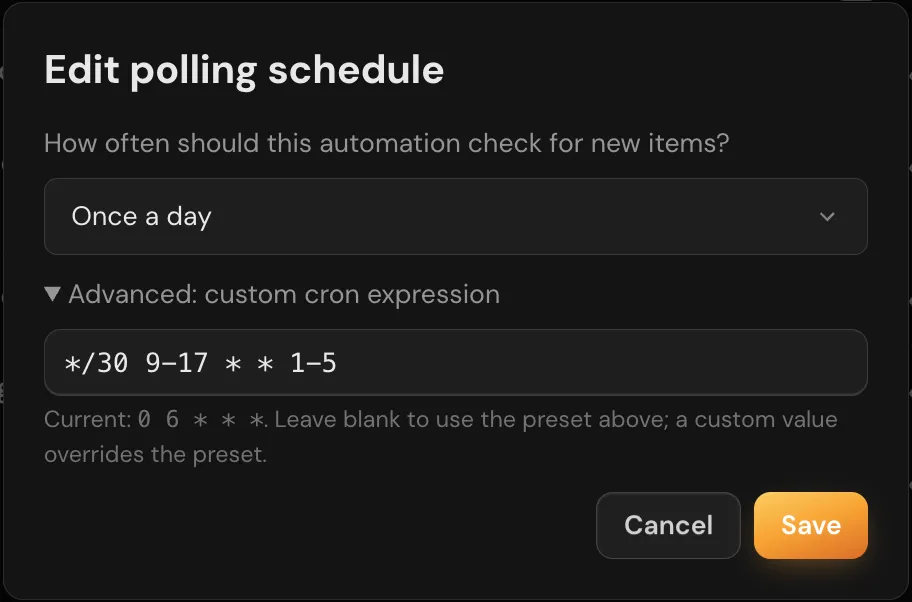
The dialog has a preset dropdown, an optional custom cron field showing the current expression, and Cancel and Save buttons.
Timezone
Schedules and polling presets run in the timezone on your profile, which you set when you sign up and can change under Manage account. An account with no timezone uses US/Eastern.
Trigger filters
A trigger filter drops records before any step runs. Ask for it in plain English, for example "only run for contacts whose plan equals premium and whose email is valid". Each filter holds groups of conditions on record fields, using these operators:
| Operators | Notes |
|---|---|
| Equals, Does not equal | Text comparison |
| Contains, Does not contain, Starts with, Ends with | Text comparison |
| Exists, Does not exist, Is empty, Is not empty | Presence checks |
| Is one of, Is none of | Comma-separated list of values |
| Is greater than, Is less than | Numeric. A non-numeric value fails the comparison |
| Length equals, Length is greater than | Length of the value |
| Matches regex, Does not match regex | Unanchored regular expression search |
| Is valid email | Checks the value is an email address |
Filters work only on polling triggers. On a webhook, form or other trigger, use a condition as the first step instead. See Conditions, loops and parallel branches.
When a scheduled poll does not run
A scheduled fire is skipped when:
- The automation is turned off.
- The fire falls outside the automation's execution windows.
- The automation's concurrency limit is already reached. In this case the fire is not dropped: it is re-queued and tried again after a short delay.
Fires missed because the platform was unavailable are handled as described in Missed occurrences.
Restrictions inside a polling run
Pause, Snooze and form waits cannot be used in an automation with a polling trigger, because the steps run inside the trigger's per-record loop. The run fails at that step. Use a webhook, manual or scheduled trigger for an automation that needs to wait. See Delays, snooze and waits.
Troubleshooting
| Symptom | Likely cause | What to do |
|---|---|---|
| No runs after turning the automation on | The trigger's first fire took a baseline | Create a new record in the app and wait for the next poll |
| Updates to existing records never start a run | The trigger is a "new item" trigger | Ask Claude to switch to the app's "new or updated" trigger, if the app has one |
| Every run is filtered out | A filter condition never matches, or uses an operator not in the list above | Ask Claude to show the trigger filter and check field names, which are case-sensitive |
| A record runs twice | Its identity changed, or it dropped out of the 10,000 remembered identities | Ask Claude which identity the trigger uses |