 .AI
.AIQuickstart: build from Claude Code
Add the APIANT MCP server to Claude Code, sign in, and have Claude build, test and turn on a webhook automation in minutes.
One address from your APIANT account menu connects Claude Code to your account. There is nothing to install: you register the address for a project directory, sign in once in your browser, and Claude builds and tests automations on your account from that directory. This quickstart builds a webhook automation, so you do not need to connect any app.
Prerequisites
- An APIANT.ai account. Create one at app.apiant.ai/register.
- Claude Code, with the
claudecommand on yourPATH. Check withclaude --version. - A browser on the same machine, for the sign-in.
Steps
1. Copy the address
- Sign in at app.apiant.ai.
- Open the account menu (your initials and name, top right) and select Connect your AI client.
- The dialog shows the address for your account, and under it the command that registers it in Claude Code. Select Copy next to the command.
The dialog shows one address with a Copy button, and the Claude Code command beneath it.
2. Register it in your project directory
Open a terminal in the directory you want to work from and paste the command. It looks like this, with your account's address at the end:
$ claude mcp add --transport http -s project apiant-ai https://mcp.apiant.ai
The command adds a server named apiant-ai to ./.mcp.json in that directory. Nothing else is written. Connect your AI client explains each part, and what to do if your organization has its own APIANT domain.
3. Start Claude Code and sign in
- Run
claudein the same directory. - Approve the
apiant-aiserver when Claude Code asks. - Run
/mcp, selectapiant-ai, and choose to authenticate. Your browser opens the APIANT sign-in page. - Sign in with your APIANT email and password, or with Google or GitHub.
- On Authorize access, check the account shown under Signed in as, then select Allow.
Claude Code stores the token and refreshes it when it expires. The skills Claude follows are loaded over the connection when it starts working, so there is nothing to update later.
4. Ask Claude to build the automation
Build an automation that runs when a webhook arrives and uppercases the name field. Put it in a folder called Quickstart.
Claude looks up what it needs, builds the automation, and saves it turned off. When it finishes, it gives you a link to the automation's diagram and the automation's webhook URL.
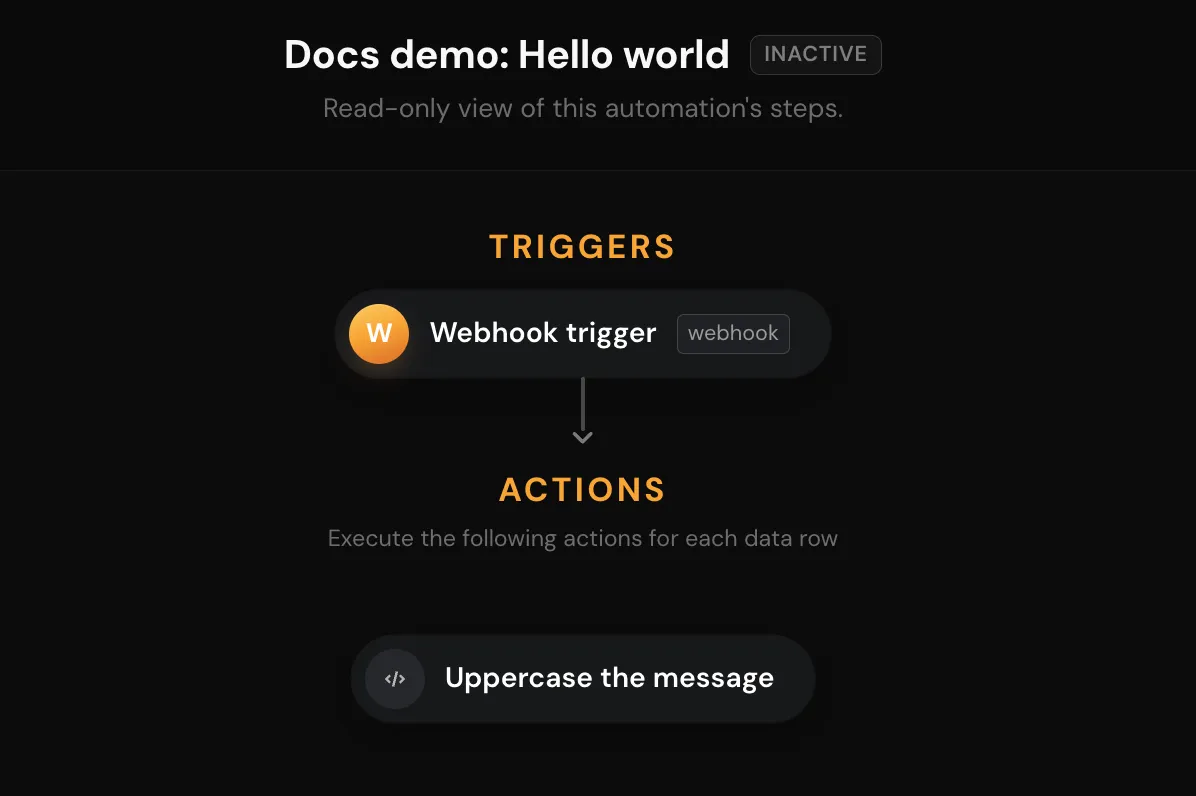
The diagram shows the webhook trigger followed by the text step.
5. Test it
Claude tests the automation after building it, with a sample payload shaped like the webhook body, and reports each step's result. If it needs to see a real payload first, it asks you to send one to the webhook URL. To run another test:
Test it with the name "ada lovelace".
6. Turn it on and send a real webhook
-
Ask Claude to turn it on:
textTurn the automation on. -
Send a request to the webhook URL Claude gave you:
bash$ curl -X POST '<webhook URL from Claude>' \ -H 'Content-Type: application/json' \ -d '{"name": "grace hopper"}' -
Ask Claude what happened, or open the automation's execution history from its dashboard row. The uppercase step's output holds
GRACE HOPPER.
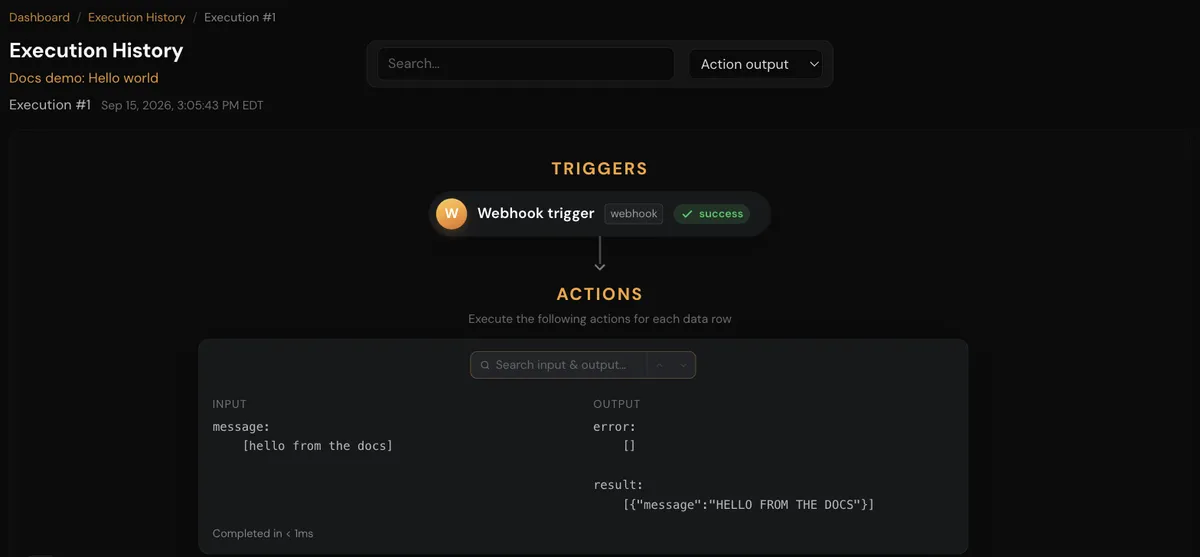
Execution history lists each run with the input and output of every step.
Result
Claude Code is connected to your APIANT account in this directory, and you have a live webhook automation. Nothing you did here used assistant credits; the runs count as tasks on your plan.
Troubleshooting
| Symptom | What to do |
|---|---|
claude: command not found | The claude command is not on your PATH. Install or locate Claude Code, then run the command again. |
| No Connect your AI client in the account menu | The item is hidden while you are acting as another account. Return to your own account. |
| Claude does not find the APIANT tools | Start Claude Code from the directory where you ran the command. The registration is per directory. |
| Sign-in says your account does not have the MCP Tools permission | Your account's role lacks that permission. Ask your account administrator to grant it. See Authentication and permissions. |
| The webhook request returned 404 | The URL is incomplete or the automation was deleted. Ask Claude for the webhook URL again. |
| No run appears after the webhook | Check the automation is on. A webhook sent while it is off waits and runs when you turn it on. |
More fixes are in Troubleshooting MCP.